
Use case
Edit Photos for Gifts and Canvas Prints with AI
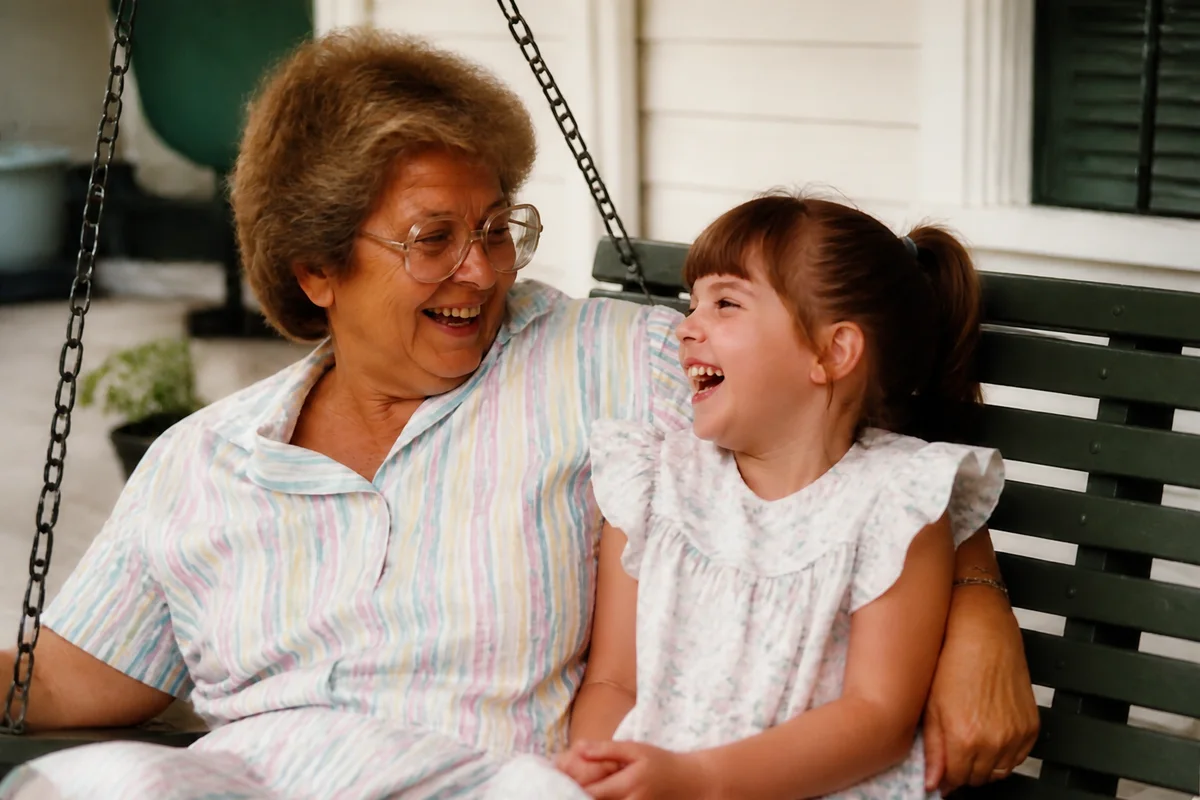
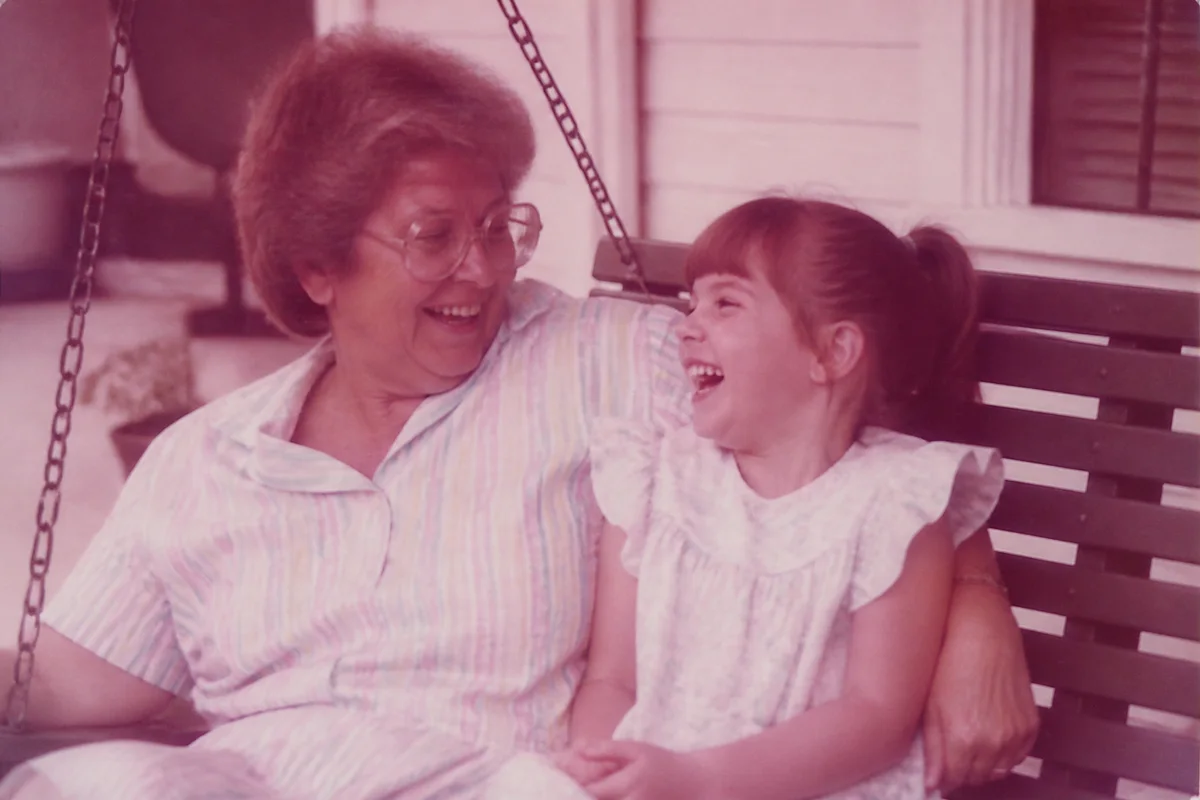
The workflow in action — drag to compare.
The photos people most want printed large — as canvas wraps, framed enlargements, metal prints, photo blankets — are chosen for meaning, not technical quality. The shot of grandma laughing, the dog who passed last spring, the honeymoon sunset: they were taken on old phones, in bad light, at whatever resolution the moment allowed, and a 24x36 canvas is merciless about all of it.
AI editing makes meaningful photos print-worthy. Restore the faded or damaged originals, fix the blur and noise that enlargement would amplify, correct the color so skin and sunsets print true, extend the edges so a canvas gallery wrap doesn't swallow the composition around the sides, and upscale so the file meets large-format resolution instead of arriving as visible pixels.
A print is a photo you'll see every day for years — an hour of editing before ordering is the difference between a gift and a compromise.
The problems this solves
- The most meaningful photos are old, small, or slightly blurred.
- Canvas gallery wraps fold the outer inches of the image around the frame edges.
- Large formats amplify every flaw invisible at phone size.
- Print services accept whatever you upload — quality problems appear only on delivery.
A workflow that works
Restore the aging originals
Faded prints and early-phone photos get repaired and recontrasted before any enlargement magnifies their flaws.
AI Photo RestorationFix the blur
Softness a phone screen forgives becomes obvious at 24 inches; deblurring rescues the meaningful-but-imperfect shot.
AI Unblur ImageCorrect color for print
Print exposes color casts screens mask — correction keeps skin tones and sunsets true on paper and canvas.
AI Color CorrectionExtend the edges for the wrap
Gallery wraps consume the image's outer edges; expansion adds sacrificial border so nothing important folds around the frame.
Generative ExpandUpscale to the print spec
Large formats need resolution phones of the past never captured; upscaling meets the printer's requirements cleanly.
AI Image UpscalerFrequently asked questions
What resolution do canvas prints and enlargements need?
Canvas is forgiving — around 100 to 150 DPI at print size often suffices because of the texture — while framed photo prints want closer to 300 DPI. For a 16x20 canvas that's roughly 2000x2400 pixels minimum; upscale to exceed your printer's guidance.
How do I keep the canvas wrap from cutting off heads and feet?
Check your print service's wrap depth — commonly 1.25 to 1.5 inches per side — and expand the image by at least that much on every edge. The expanded border wraps the frame; the original composition stays on the face.
Can a low-resolution photo from an old phone really print large?
Usually, yes — restoration, deblurring, and upscaling together get most old photos to canvas-quality at common sizes. Review the upscaled file at 100% before ordering; faces should look natural, not painted.
What photos make the best canvas gifts?
Single strong subjects with simple backgrounds print best large — one great portrait beats a busy group shot at canvas scale. Restore and edit the sentimental favorite, then preview it at the target crop before committing to a size.
Related use cases