
Use case
Make a Professional LinkedIn Headshot with AI

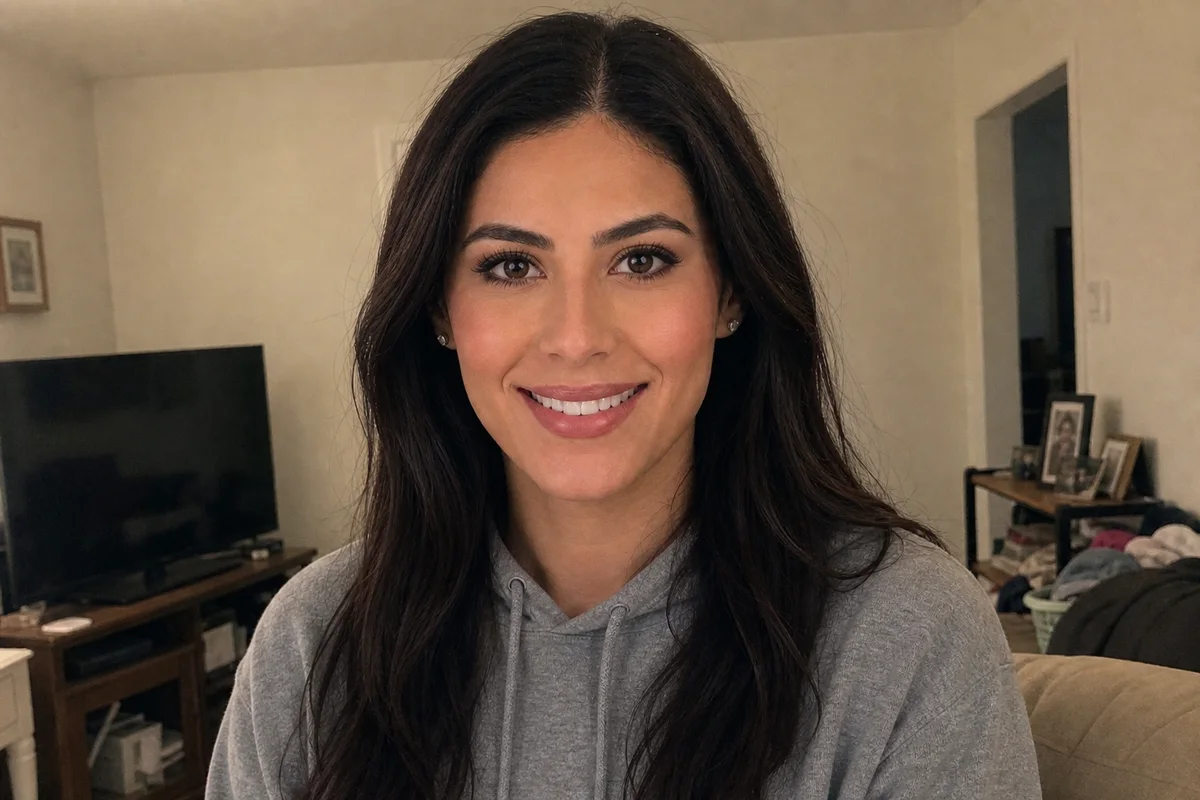
The workflow in action — drag to compare.
Your LinkedIn photo shows up next to every message, comment, and application you send. Recruiters and clients see it before they read a word about you — and a dim bathroom selfie or a vacation crop with someone's shoulder in frame sends the wrong signal. Professional headshot sessions solve this, but they cost real money and go out of date the moment you change your hair.
The practical alternative: take a well-lit phone photo and let AI handle the rest. Replace the bedroom wall with a clean studio or office background, even out harsh shadows, apply light retouching that keeps you recognizable, and crop so your face sits properly in LinkedIn's circular frame.
The goal is a photo that looks like you on a good day — approachable, current, and sharp enough to hold up at thumbnail size in a crowded feed.
The problems this solves
- No professional photos on hand — just selfies and vacation shots with busy backgrounds.
- Indoor lighting creates harsh shadows and an unflattering color cast.
- Studio headshot sessions are expensive and go stale after a haircut or style change.
- The profile photo gets cropped into a small circle, so composition and sharpness matter more than people expect.
A workflow that works
Replace the background with something professional
A neutral studio gray, soft office blur, or clean gradient instantly reads as intentional rather than cropped-from-a-group-photo.
AI Background ChangerFix the lighting on your face
Soft, even light is what separates a headshot from a snapshot — it removes the harsh overhead shadows phone photos pick up indoors.
AI Lighting ChangerApply natural retouching
Light cleanup of temporary blemishes and shine keeps you looking like yourself; the photo has to match the person who shows up to the interview.
AI Face RetouchSharpen for thumbnail size
LinkedIn displays your photo small; a crisply sharpened image stays clear in the feed while a soft one turns to mush.
AI Image SharpenerCrop for the circular frame
Head and shoulders centered with a little headroom is the composition that survives LinkedIn's circle crop.
AI Photo ReframeFrequently asked questions
What should I wear and how should I pose for the source photo?
Wear what you'd wear to a client meeting in your field, face a window for soft light, hold the camera slightly above eye level, and have someone take it or use a timer from a few feet away rather than at arm's length — arm's-length selfies distort facial proportions.
How much retouching is appropriate for a professional headshot?
Remove temporary things: blemishes, shine, stray hairs, red eyes from flash. Keep permanent features — lines, freckles, scars — because the photo needs to match you in person. Heavy smoothing reads as untrustworthy on a professional profile.
What background works best for LinkedIn?
Neutral and uncluttered: soft gray or off-white studio tones, a gently blurred office, or a muted gradient. Avoid busy scenes and pure white, which can look like a pasted cutout at thumbnail size.
What size does LinkedIn need?
LinkedIn accepts profile photos from 400x400 up to 7680x4320 pixels. Export at least 800x800 so the photo stays sharp on retina screens, and check how it looks cropped to a circle before uploading.
Related use cases