
Use case
Prepare Memorial and Funeral Photos with AI
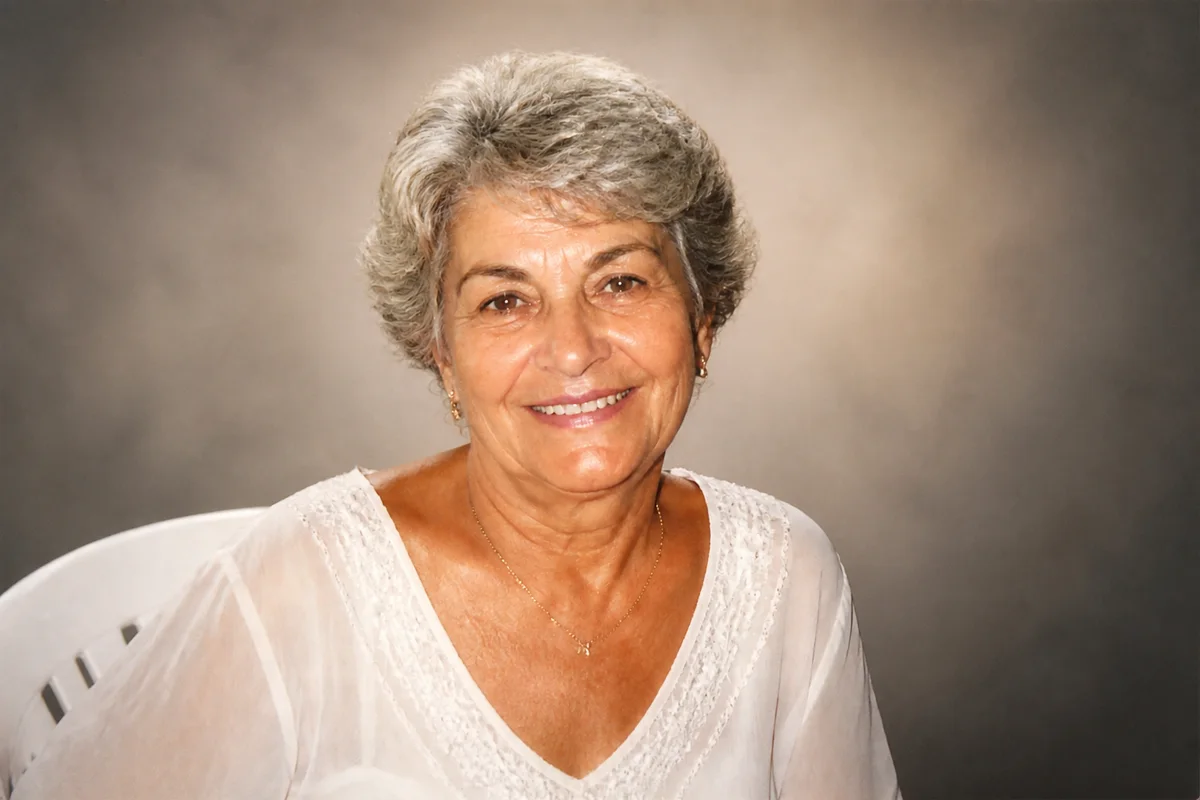
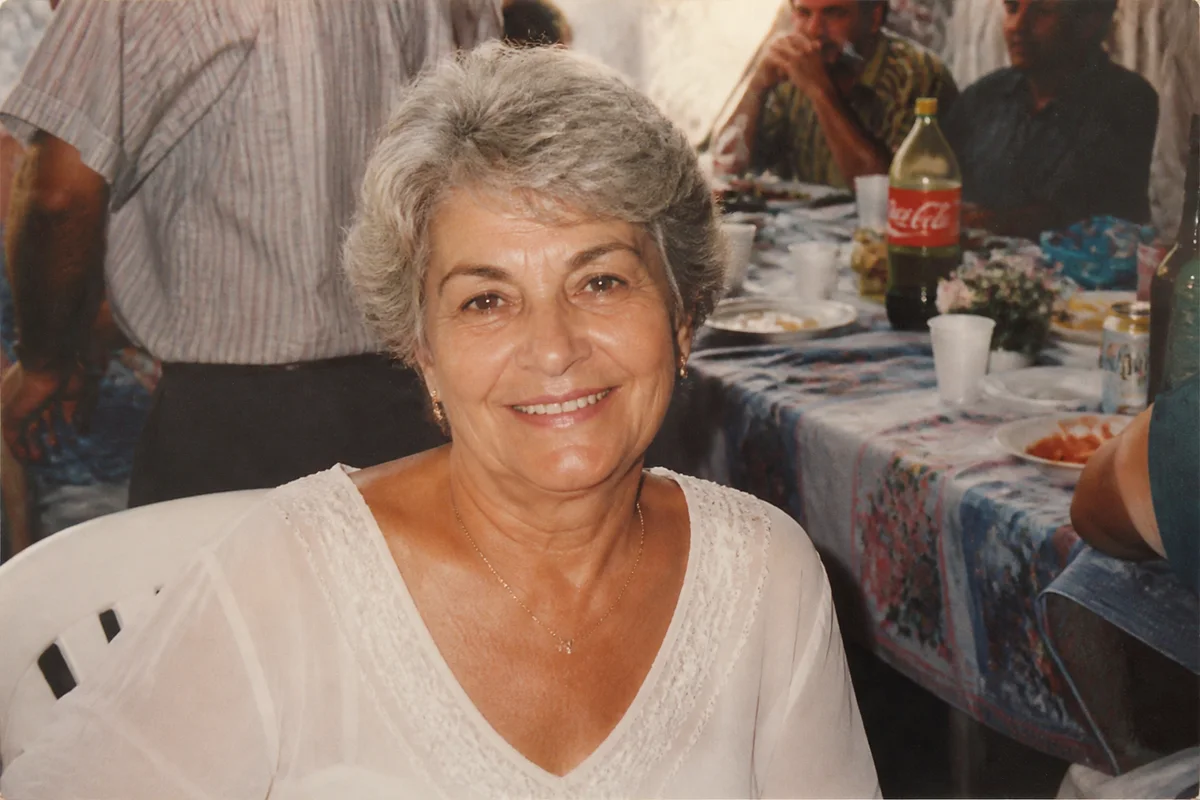
The workflow in action — drag to compare.
When a family loses someone, one photo suddenly matters enormously — the one that will stand at the service, appear in the obituary, and be printed on programs. Too often, the photo everyone agrees best captures the person is a casual snapshot: cropped from a group, taken at a party, slightly blurry, or decades old and faded.
AI editing helps a family prepare that photo with dignity and very little time, which is exactly what the week of a service doesn't offer. Restore an aging print, gently sharpen their face, remove the cluttered background from a birthday snapshot in favor of something calm and neutral, and enlarge the result so it holds up printed at display size beside the casket or on an easel.
The aim is fidelity, not improvement — the person, as they were, presented clearly and with care.
The problems this solves
- The best photo of the person is a casual snapshot with a busy party or living-room background.
- The photo everyone loves has other people in it and needs a respectful solo crop.
- Available photos are old, faded, or physically damaged.
- The service needs a large print, but the source photo is small or low-resolution.
A workflow that works
Restore an old or damaged print
Fading, scratches, and creases are repaired first so every later step works from the best possible version.
AI Photo RestorationGently recover their face
Careful enhancement brings clarity to eyes and features in soft or small originals — legibility, not alteration.
AI Face EnhancementReplace a busy background
A calm, neutral backdrop turns a party snapshot into a portrait appropriate for a service display or obituary.
AI Background ChangerEnlarge for display printing
Memorial displays are typically 16x20 or larger; upscaling lets a small snapshot print at that size with dignity.
AI Image UpscalerFrequently asked questions
The best photo has other people in it. What's the respectful way to handle that?
Either crop to the person and replace the background, or remove the others and rebuild the scene behind them. The background-replacement route usually looks cleaner for a formal display; keep a copy of the original group photo unedited.
What size photo does a funeral home need?
Ask the funeral home — common display sizes are 16x20 and 20x24, plus a smaller version for programs and the obituary. Aim for roughly 200 to 300 pixels per inch at print size; upscale the edited photo to reach that.
How much editing is appropriate for a memorial photo?
Restore and clarify, don't idealize. Repair damage, sharpen, and calm the background — but keep their face, expression, and the details that made them recognizable. Families generally regret edits that make the photo look unlike the person they knew.
How fast can this be done? The service is in a few days.
Each edit takes seconds to minutes in the browser, so a restored, enlarged, print-ready photo is realistic within an hour of finding the source image — including time to try a couple of background options and get family agreement.
Related use cases