
Retouch
AI Face Enhancement
Brighter eyes, cleaner detail, the same face
Free credits on signup — no credit card required.
- 1Upload a photo where a face is visible
- 2The AI sharpens eyes, refines skin lighting, and lifts facial detail
- 3Download the enhanced photo
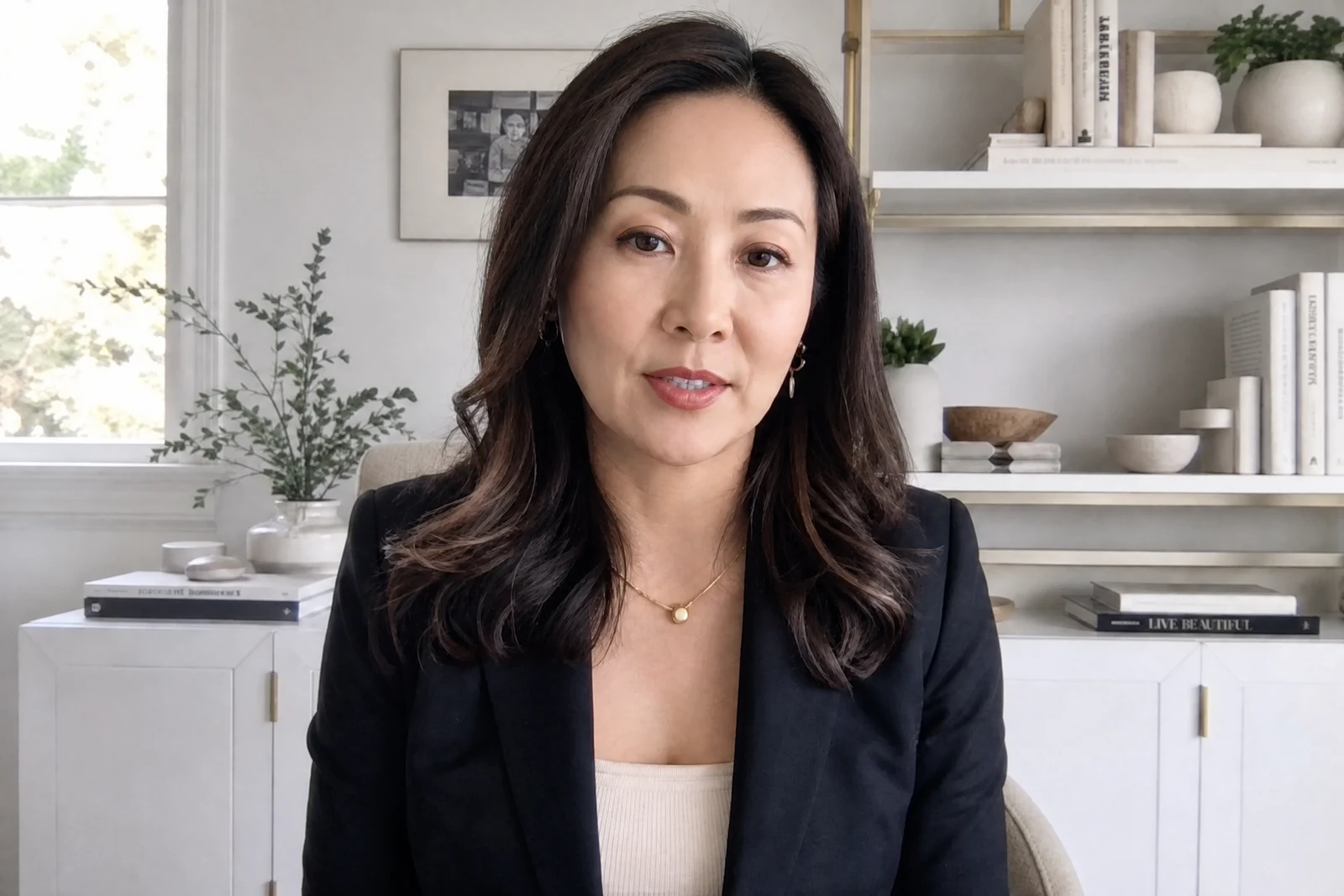
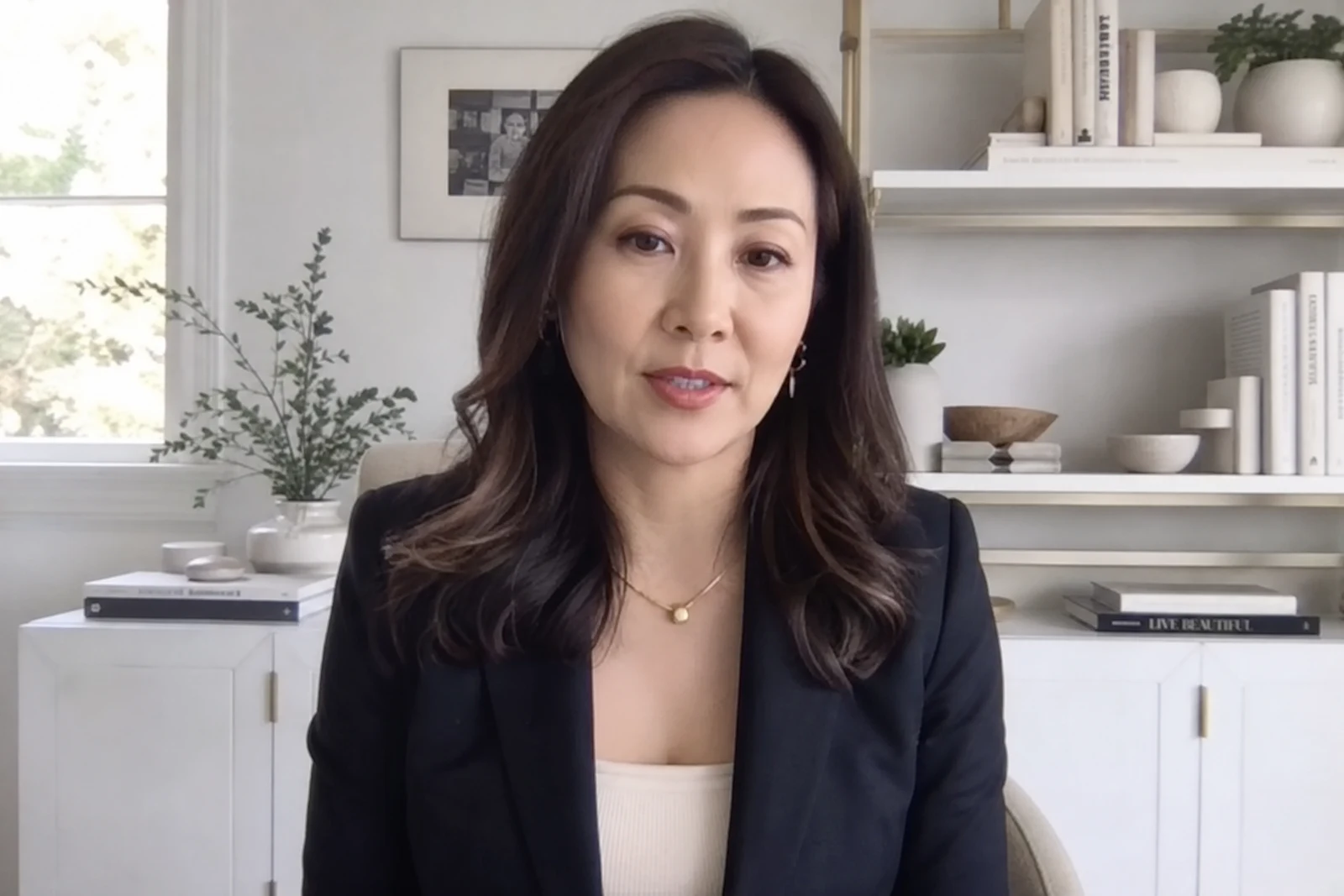
Real output from the editor — drag to compare.
There is a gap between a photo that is technically fine and one where the subject genuinely shines. The difference usually lives in small things: eyes that catch light, skin that is lit evenly, a face that is a touch sharper than its surroundings. Portrait photographers dodge, burn, and sharpen selectively to get there; this tool applies the same micro-adjustments automatically.
Upload any photo containing a face and the AI brightens and sharpens the eyes, refines how light sits on the skin, recovers facial detail softened by compression or focus misses, and gently lifts local contrast where it flatters. The guiding constraint is identity: features are not reshaped, and the finished face should look like the same person on a particularly good day.
It shines on video-call screenshots, slightly soft candids, group shots where faces are small in frame, and any photo destined for a profile. For skin-specific work such as blemishes and shine, Retouch Face is the companion tool; for fixing a specific problem like glasses glare or closed eyes, the dedicated tools handle those directly.
Why this tool
- Chain the result into any of the other tools
- Standard, Pro and Max quality tiers
- Results land in your creations library
- Upscale to print size or turn into video
Frequently asked questions
What does enhancement adjust?
It targets light, sharpness, and detail rather than geometry — review the result to confirm your features look right. If you want to change an expression, that is a separate, deliberate tool (Expression Changer).
How is this different from Retouch Face?
Retouch Face removes skin imperfections: blemishes, redness, shine. Face Enhancement improves how the face renders: eye clarity, lighting, and detail. On a rough-skin, well-lit photo choose Retouch; on a clean but flat photo choose Enhancement.
Does it help faces that are small or slightly blurry?
Yes, recovering small and slightly soft faces is one of its main jobs. Severely blurred faces are better served by Unblur Image first, then enhancement on the result.
Does it work on multiple faces at once?
Yes, all detected faces receive the treatment, which makes it useful for group photos where everyone deserves the same lift.
Can I try AI Face Enhancement for free?
Yes — every new account starts with 4 free credits, enough to run this tool once at Standard quality. No credit card required.
Related tools