
Enhance
Generative Expand
Grow your photo beyond its borders with matching scenery
Free credits on signup — no credit card required.
- 1Upload your photo and pick the ratio to expand into
- 2The AI generates scenery beyond the borders, matching light and detail
- 3Download the uncropped result
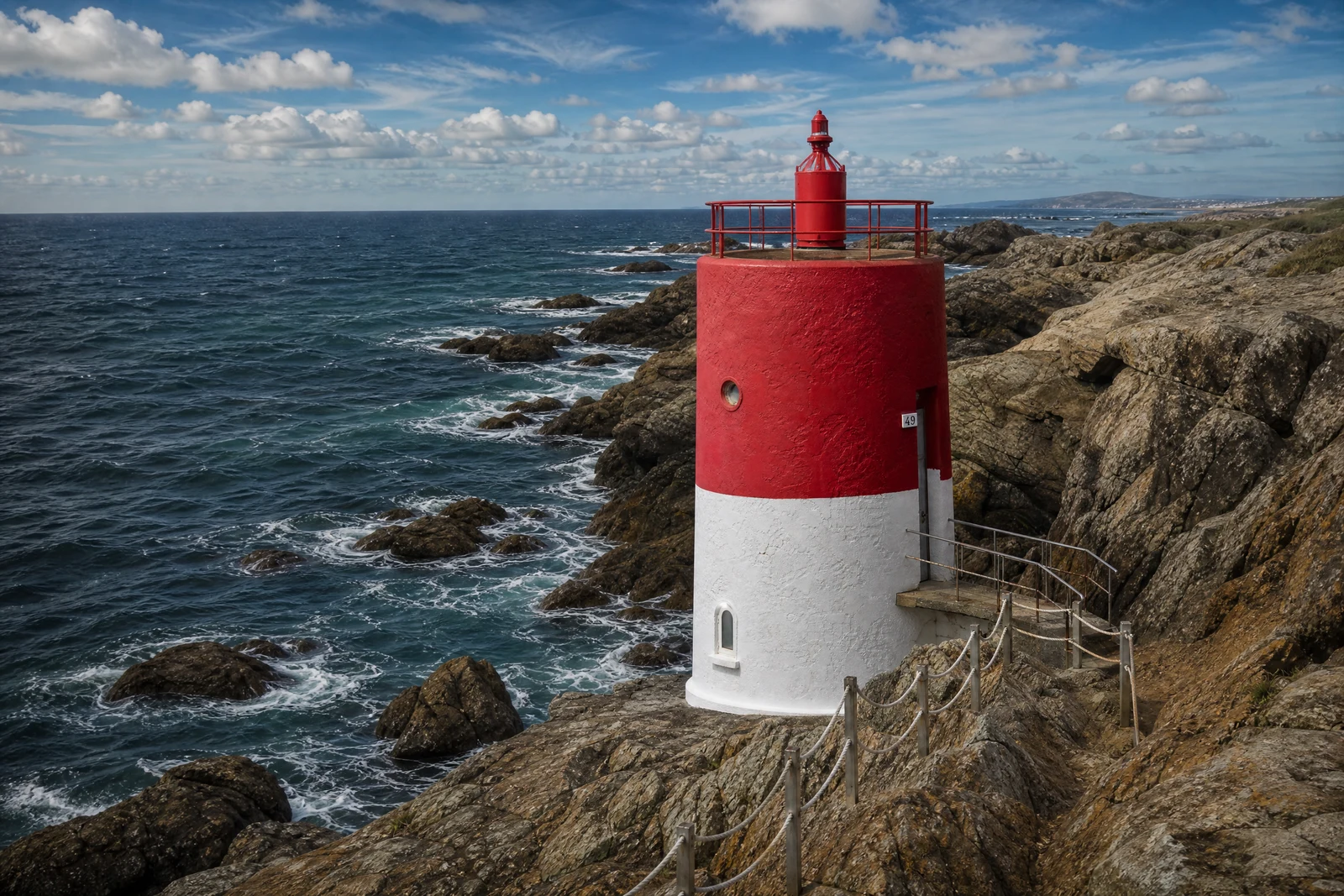
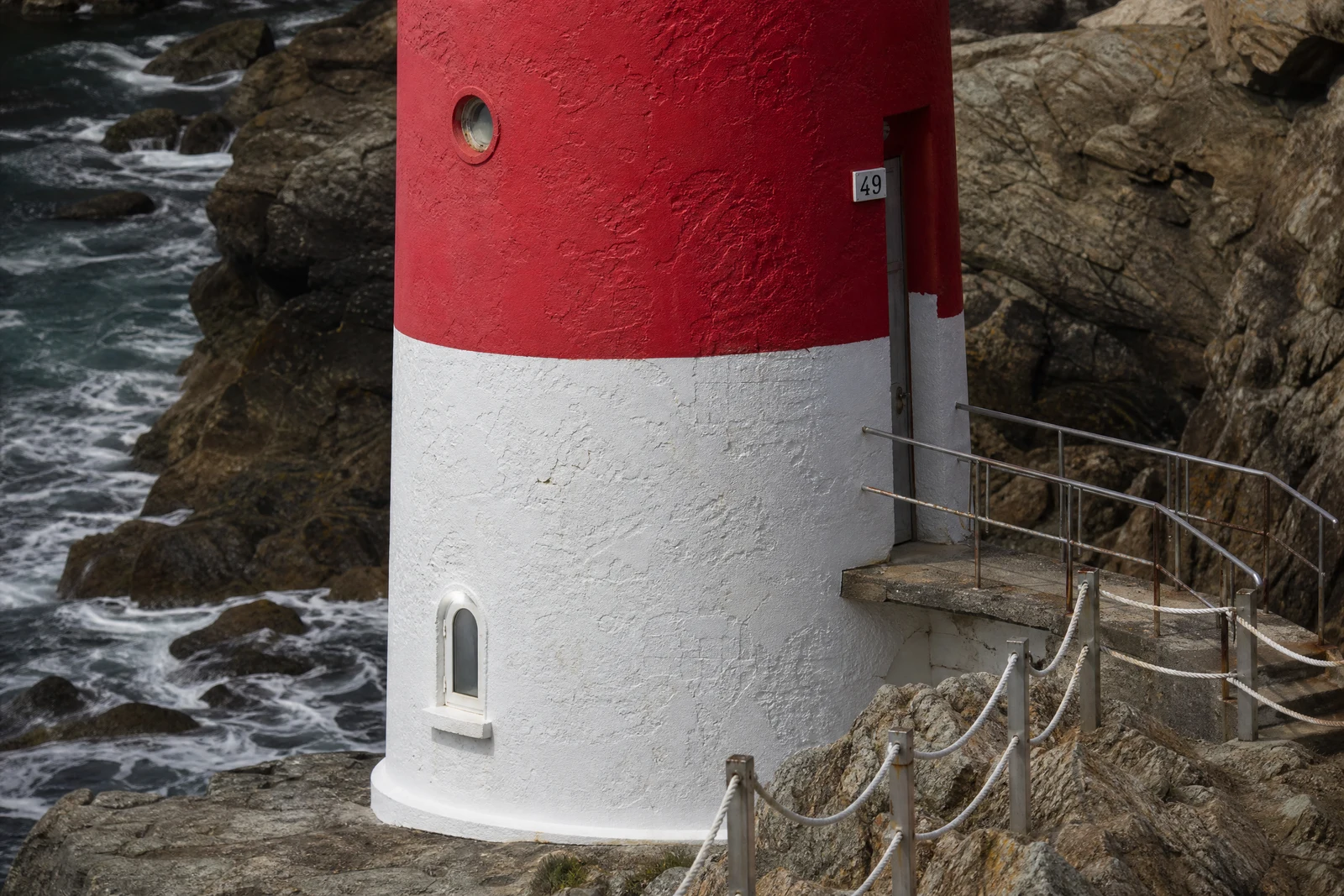
Real output from the editor — drag to compare.
Some photos are framed too tight: the crop clips a shoulder, the landscape wants more sky, the product shot needs breathing room for a headline. Generative expand, often called outpainting or uncropping, solves it by generating new image beyond the original borders, continuing the scene as if the camera had simply captured a wider view.
Your original pixels are preserved exactly; the AI studies the edges of the frame and extends what it finds: skies continue with consistent cloud logic, walls and floors carry their perspective lines outward, foliage and textures grow naturally, and lighting direction and color grade stay coherent across the seam. Choose any target ratio from square to 21:9 ultrawide and the expansion fills the difference.
It is the cleanest way to convert a portrait-orientation shot into a wide banner, add negative space for design and text overlays, or recover from over-tight framing. When the composition itself needs rethinking for the new shape, rather than just more scene, Reframe is the tool that recomposes; Expand never moves what you shot.
Why this tool
- Chain the result into any of the other tools
- Standard, Pro and Max quality tiers
- Results land in your creations library
- Upscale to print size or turn into video
Frequently asked questions
How does Expand treat my original image?
It adds generated scene outside the original borders rather than recomposing the frame — that is the difference from Reframe. Compare the result with your original before using it.
What scenes expand most convincingly?
Continuable surroundings: skies, water, fields, walls, floors, and foliage. Highly specific content at the frame edge, like a partially visible person, is harder, since the AI must invent what the camera never saw.
Can I expand in one direction only?
The expansion is driven by the target ratio: going from 1:1 to 16:9 adds width on both sides, to 9:16 adds height. For asymmetric extensions, expand first and then crop one side, or use Reframe.
Why expand instead of just adding borders?
Borders are dead space; expansion is usable image. A widened photo can host headlines, fit a hero slot edge-to-edge, or print at a new size while still looking like a photograph, not a matted print.
Can I try Generative Expand for free?
Yes — every new account starts with 4 free credits, enough to run this tool once at Standard quality. No credit card required.
Related tools
AI Photo Reframe
Recompose any photo to a new aspect ratio, subject intact
AI Background Changer
Put your subject anywhere: studio, beach, or pure imagination
AI Image Upscaler
Enlarge photos with real detail, not just bigger pixels
AI Add Object
Insert any object into your photo, exactly where you want it