
Use case
Edit Instagram Photos with AI
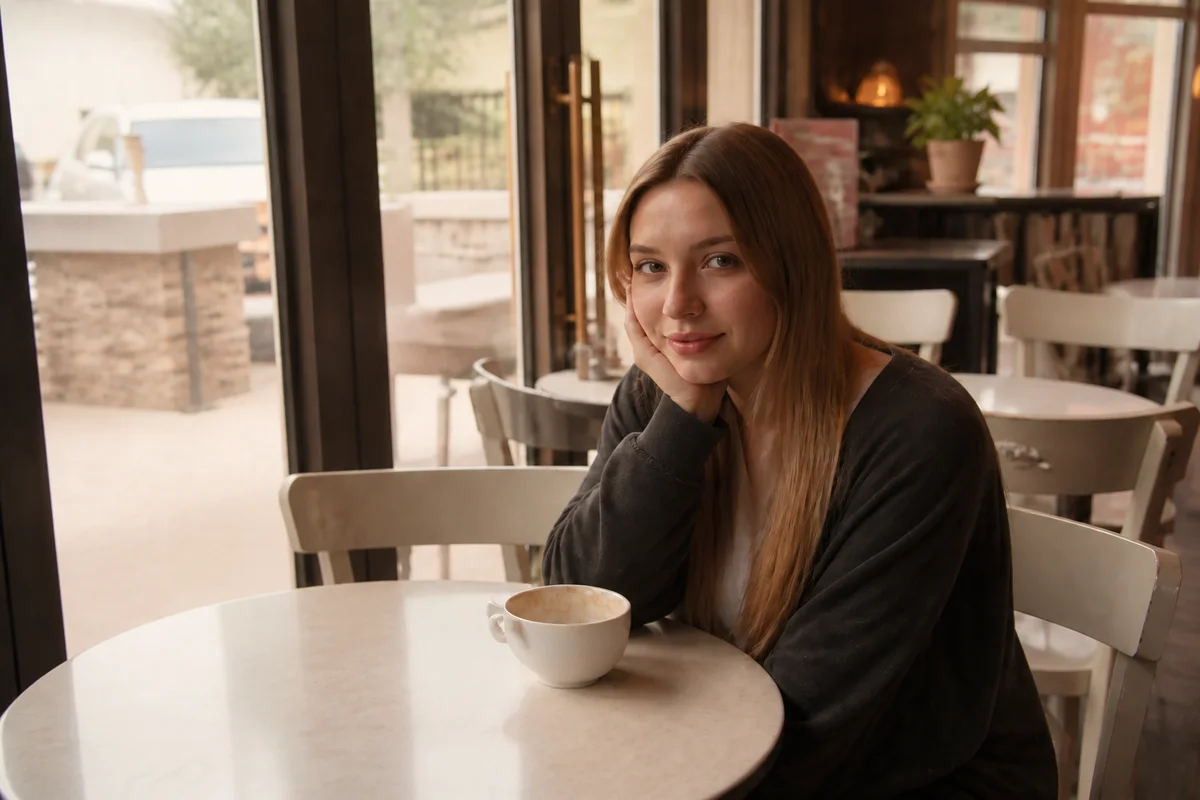
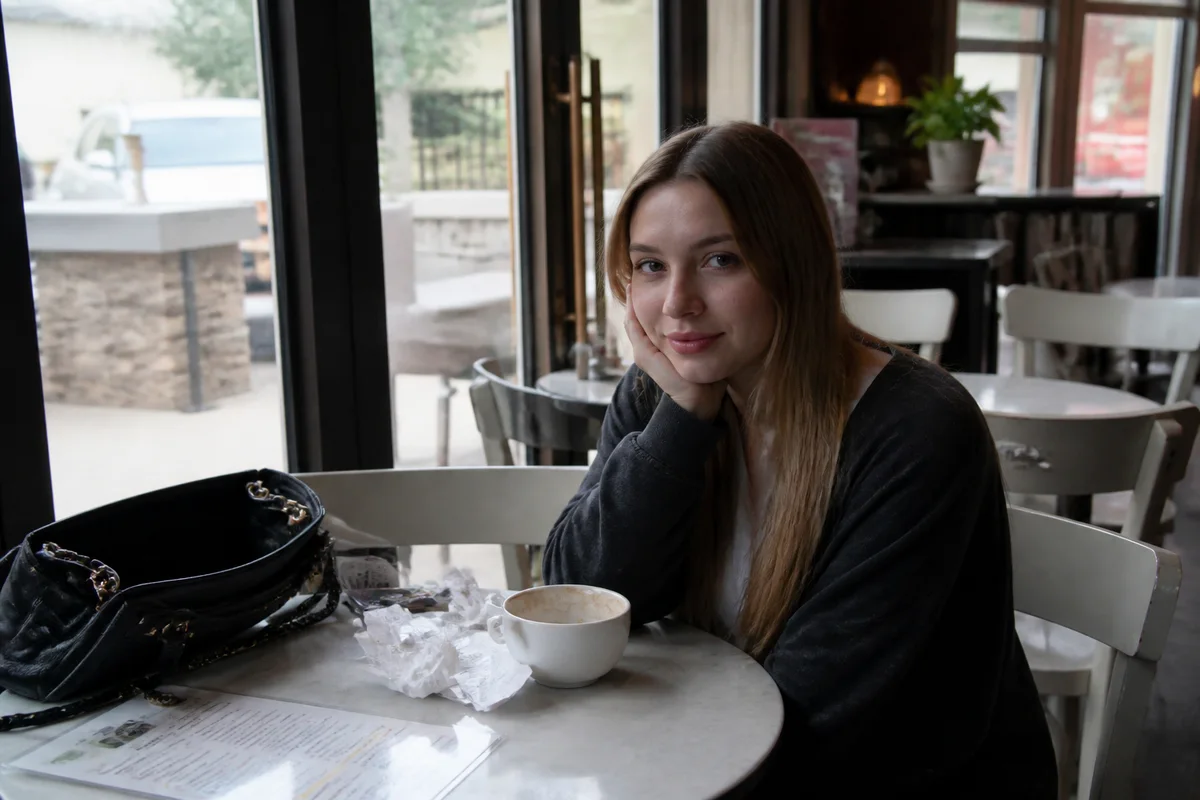
The workflow in action — drag to compare.
Instagram rewards two things that fight each other: posting often and posting well. A cohesive grid — consistent color, clean compositions, intentional crops — takes editing time that daily posting doesn't leave. And the platform's formats keep multiplying: 4:5 feed posts, 9:16 Stories and Reels covers, 1:1 grid previews.
AI editing collapses the workflow. Correct color to your feed's look in one step, remove whatever cluttered the background of today's shot, expand or reframe a single photo for every placement, and add scroll-stopping effects — like text woven behind your subject — without opening a design app.
The result is a camera-roll-to-posted pipeline fast enough to keep up with a daily schedule and consistent enough that the grid still looks curated.
The problems this solves
- The grid looks incoherent because each photo was edited differently — or not at all.
- One photo needs feed, Story, and grid-preview crops with different aspect ratios.
- Real-world backgrounds — cafés, streets, apartments — are full of clutter.
- Standing out in the feed requires design effects that normally mean learning Photoshop.
A workflow that works
Set your feed's color signature
Applying a consistent color treatment to every post is the single biggest driver of a cohesive grid.
AI Color CorrectionClean today's background
The café table clutter and background pedestrians disappear, keeping the frame about you and the moment.
AI Object RemoverAdd text behind your subject
Text layered behind you — a word, a location, a date — is a proven scroll-stopper that normally requires manual masking.
Text Behind ObjectExpand for Stories and Reels covers
Extending a 4:5 shot to 9:16 keeps the composition intact instead of cropping your head off for the Story version.
Generative ExpandCrop the final formats
Export the 4:5 post, the 1:1 grid preview, and the 9:16 vertical from one edited master so every placement looks intentional.
AI Photo ReframeFrequently asked questions
What's the best image size for Instagram in practice?
Upload 4:5 portrait (1080x1350) for feed posts — it occupies the most screen. Keep key content centered so the 1:1 grid crop still reads. For Stories and Reels covers, 1080x1920. Export high quality; Instagram recompresses everything.
How do I make my grid look consistent when I shoot in different places?
Pick one color direction — warm and bright, moody and muted, high-contrast — and correct every photo toward it before posting. Consistent color unifies wildly different scenes far better than consistent subjects do.
How does the text-behind-object effect work?
The editor separates your subject from the background and layers your text between them, so letters appear tucked behind you. It works best with a clearly defined subject and bold, simple text.
Does Instagram penalize edited or AI-edited photos?
Instagram doesn't downrank photos for being edited — polished content is the platform norm. AI-generated imagery may get labeled per platform policy, but editing your own real photos (color, background, crop) is standard practice.
Related use cases