
Enhance
AI Photo Reframe
Recompose any photo to a new aspect ratio, subject intact
Free credits on signup — no credit card required.
- 1Upload your photo and choose the target aspect ratio
- 2The AI recomposes the frame around your subject, generating scene as needed
- 3Download the recomposed image, or run more ratios for a full set
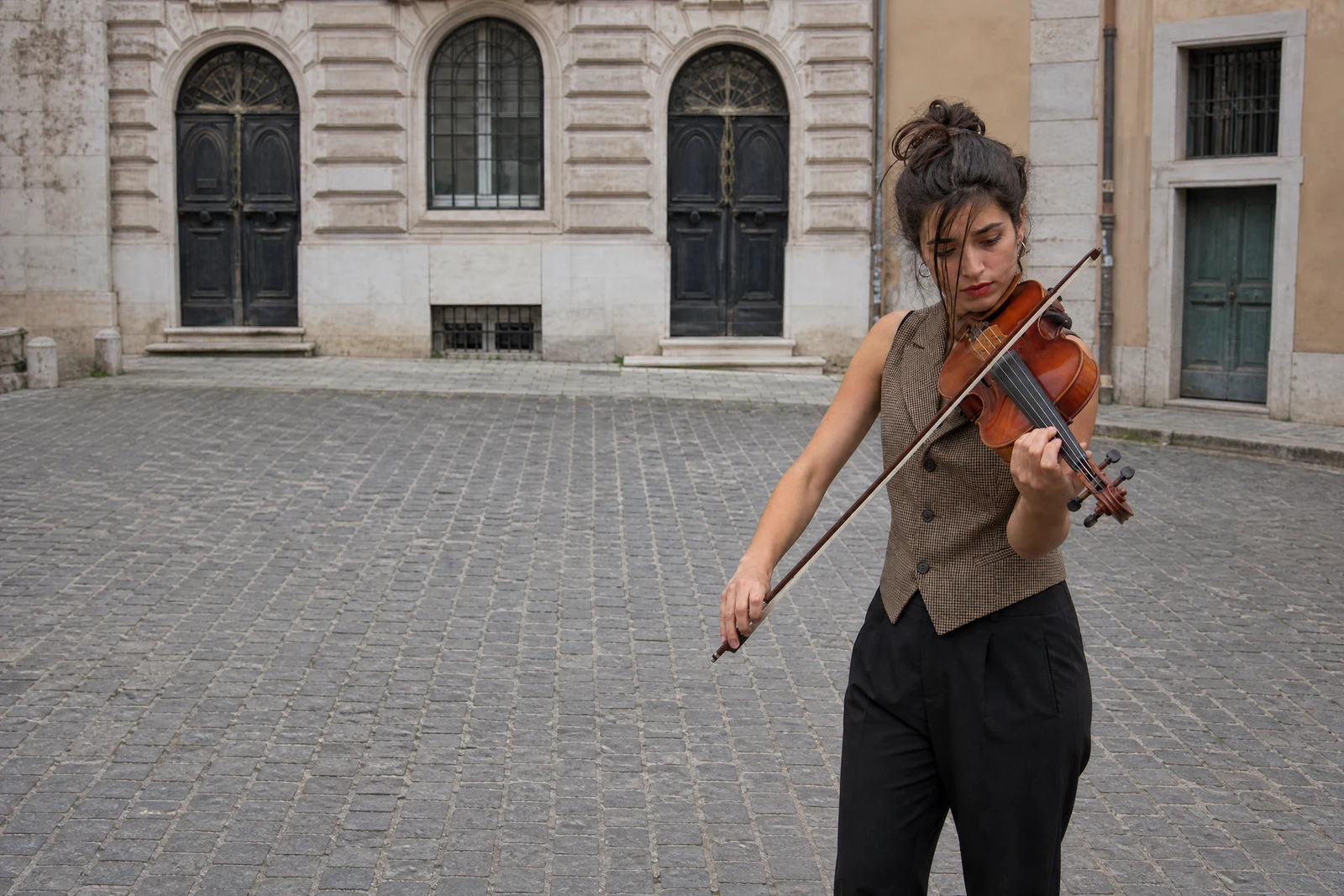
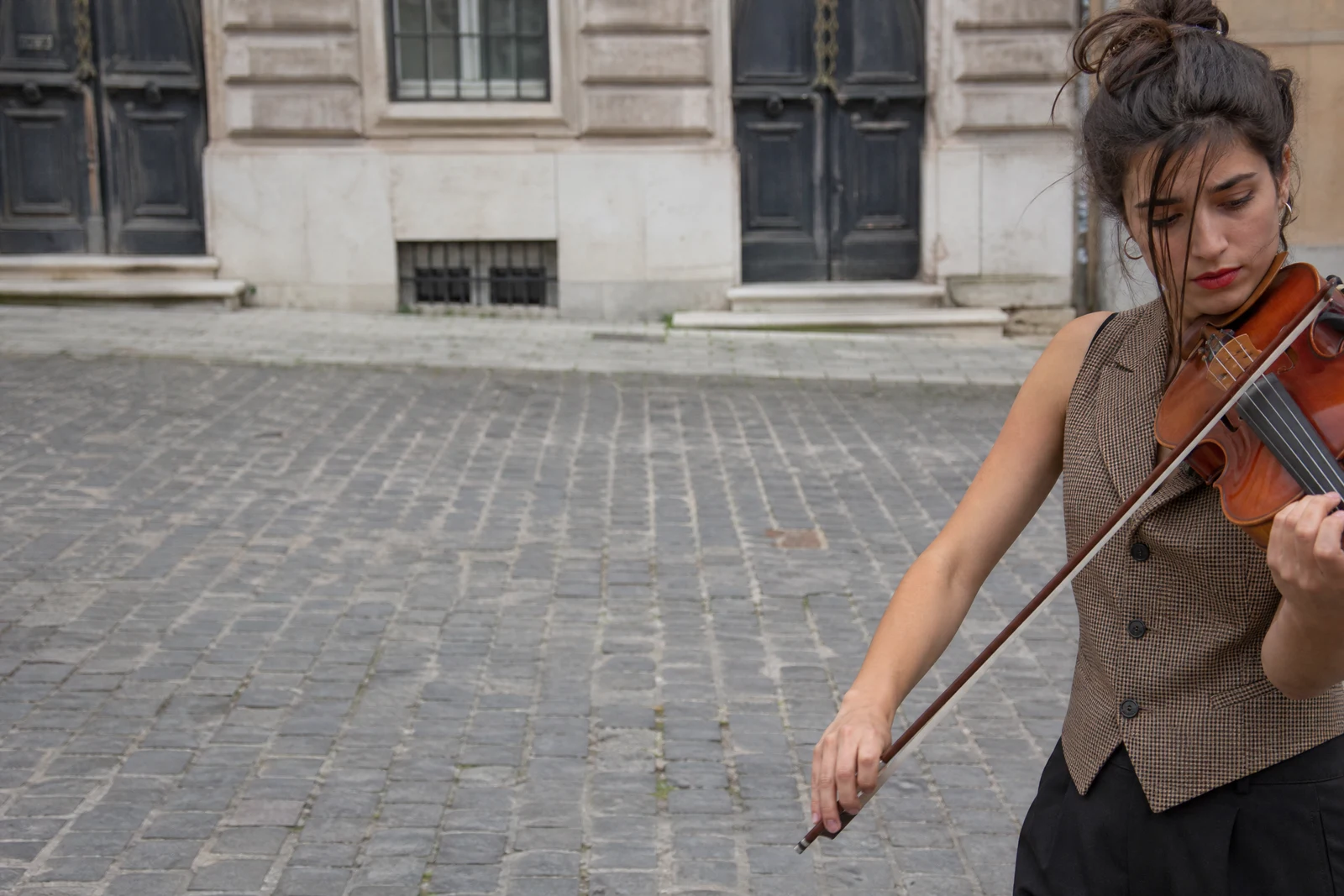
Real output from the editor — drag to compare.
Every platform wants a different shape: square for feeds, 9:16 for stories and reels, 16:9 for video thumbnails and site headers, 4:5-ish portrait for print. A naive center crop routinely amputates heads, cuts subjects in half, or throws away the compositional balance that made the photo work. Reframing is the smarter operation: recomposing the image for the new shape.
Pick a target ratio from ultrawide 21:9 to tall 9:21 and the AI rebuilds the frame around what matters. It identifies the subject and the supporting elements, positions them according to sound composition in the new geometry, and generates any additional scene needed to fill the fresh dimensions. The result looks like the photographer shot that ratio deliberately, not like a crop survivor.
One source photo can serve every destination: run it through each ratio you need and get a consistent set for feed, story, banner, and print. When your goal is specifically to add more scene around your original as-is rather than recompose it, Generative Expand is the sibling tool built for that.
Why this tool
- Chain the result into any of the other tools
- Standard, Pro and Max quality tiers
- Results land in your creations library
- Upscale to print size or turn into video
Frequently asked questions
How is this better than cropping?
Cropping can only discard pixels, which forces bad tradeoffs on dramatic ratio changes. Reframing repositions the subject with proper composition and generates scene to fill the new shape, so nothing important gets amputated.
How is Reframe different from Generative Expand?
Expand adds generated scene beyond your original image's borders. Reframe may recompose, reposition, and extend, optimizing the whole frame for the new ratio. Use Expand to add scene, Reframe to recompose.
Which ratios should I use for social media?
1:1 and 3:4 for feed posts, 9:16 for stories and reels, 16:9 for video thumbnails and link previews. The 21:9 and 9:21 panoramics suit site heroes and print pieces.
Will generated areas look different from the original photo?
Generated scene continues the original's lighting, grain, and color so the seam is not visible. Simple, continuable surroundings (sky, walls, foliage) extend most convincingly.
Can I try AI Photo Reframe for free?
Yes — every new account starts with 4 free credits, enough to run this tool once at Standard quality. No credit card required.
Related tools
Generative Expand
Grow your photo beyond its borders with matching scenery
AI Background Remover
Cut out any subject on a clean, transparent background
AI Image Upscaler
Enlarge photos with real detail, not just bigger pixels
AI Background Changer
Put your subject anywhere: studio, beach, or pure imagination