
Use case
Make YouTube Thumbnails with AI
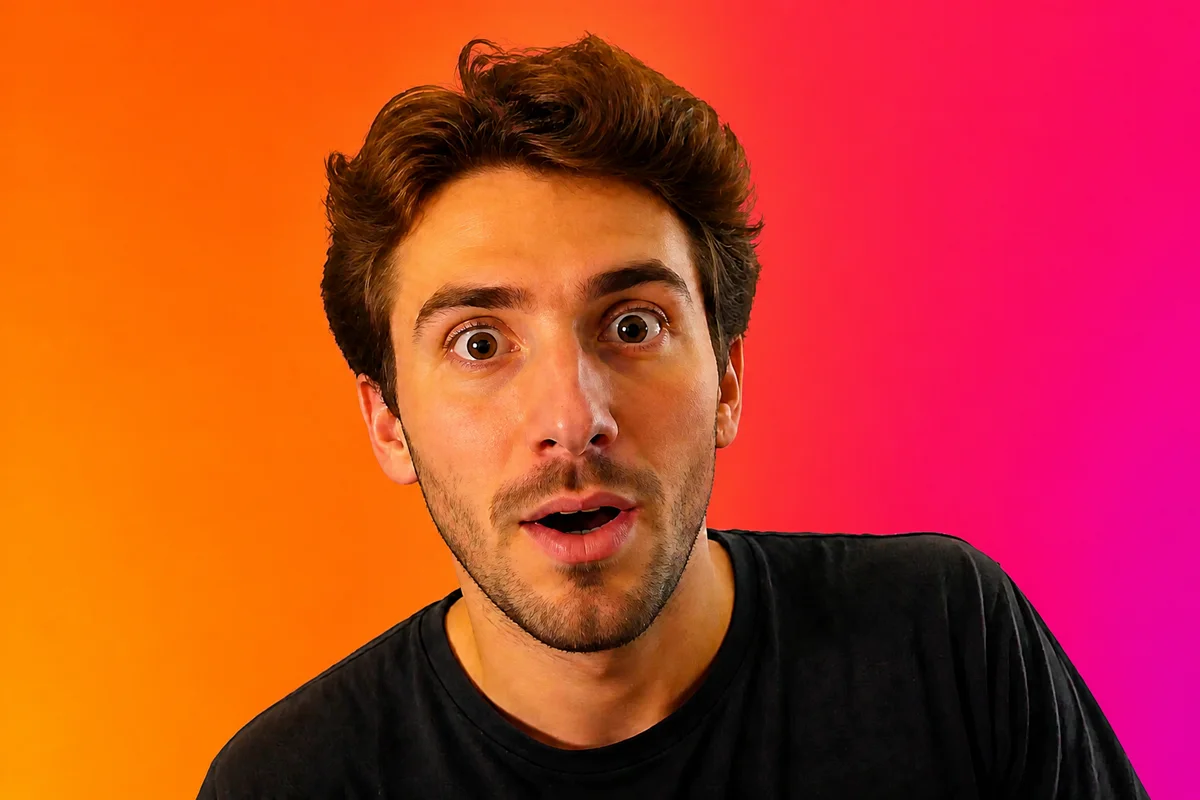
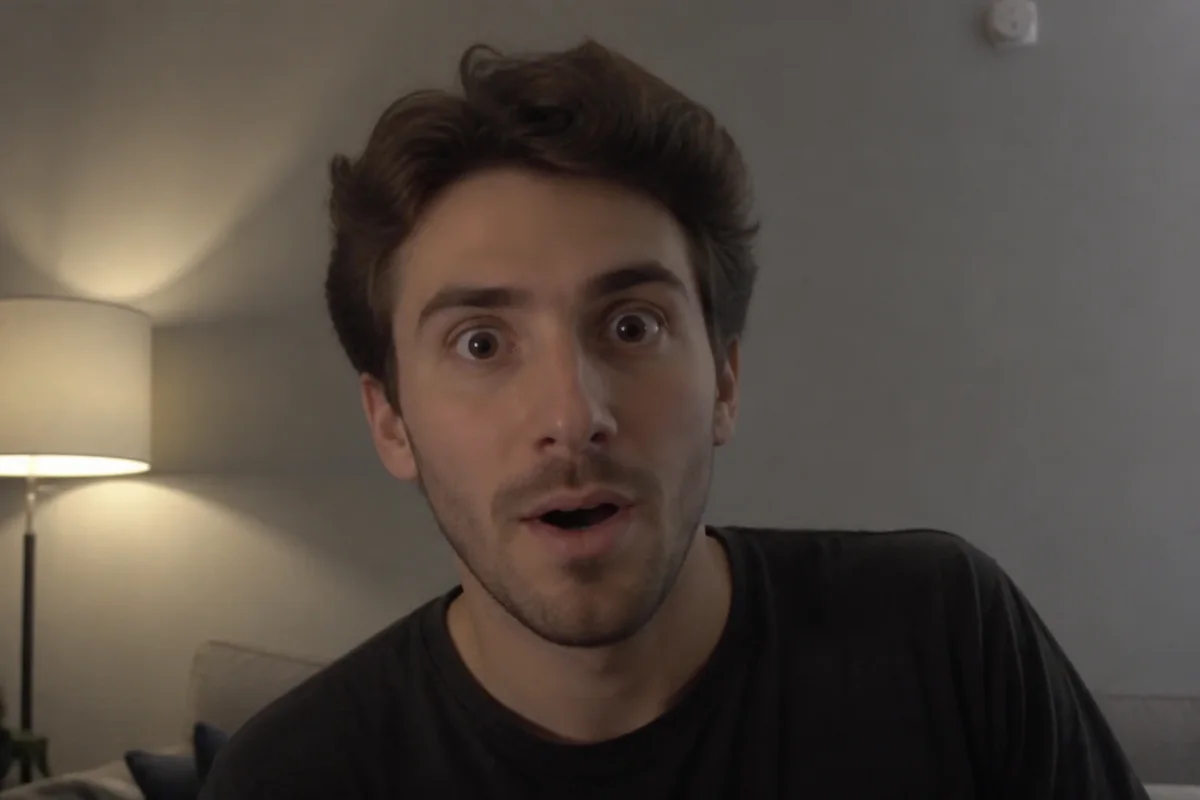
The workflow in action — drag to compare.
The thumbnail decides whether the video gets watched — most creators learn this the hard way when a good video dies with a bad thumbnail. The formula is well known: a big, expressive face, high contrast against the background, and one clear visual idea readable at the size of a postage stamp.
AI editing builds that formula from ordinary frames and selfies. Cut yourself out of any background cleanly, push your expression to the exaggerated surprise or excitement thumbnails run on, drop yourself onto a high-contrast background, add the prop or object the video is about, and sharpen so the face stays crisp when YouTube renders it tiny in the sidebar.
Because every step runs in the browser, you can produce two or three thumbnail variants per video and let the packaging compete — the workflow big channels use, without the designer.
The problems this solves
- Grabbed video frames are soft, badly lit, and don't pop at small sizes.
- Cutting yourself out of a background cleanly takes real Photoshop skill.
- The expression in the best frame is flat — thumbnails need exaggerated emotion.
- Making multiple thumbnail variants per video takes longer than editing the video.
A workflow that works
Cut yourself out of the frame
A clean subject cutout is the foundation of the classic thumbnail composition: big face, bold background.
AI Background RemoverPush the expression
Turn a neutral frame into the wide-eyed surprise or big grin that thumbnails are built on — no reshooting reaction faces.
AI Expression ChangerDrop in a high-contrast background
Bold, simple backgrounds make the subject pop in a sidebar full of competing thumbnails.
AI Background ChangerAdd the object the video is about
Placing the product, prop, or payoff item next to your face communicates the video's premise without words.
AI Add ObjectSharpen for small-size rendering
Thumbnails render tiny on most surfaces; aggressive sharpness keeps the face and key object readable.
AI Image SharpenerFrequently asked questions
What size should a YouTube thumbnail be?
1280x720 pixels (16:9), under 2MB, in JPG or PNG. Design for how it looks at roughly 160 pixels wide — if the idea doesn't read at that size, simplify it.
Do exaggerated-expression thumbnails actually work?
Expressive faces reliably outperform neutral ones for most content categories, which is why the style dominates. Match intensity to your niche — a finance channel needs less cartoon surprise than a gaming channel — and keep the expression true to the video's tone.
How do I test which thumbnail works better?
YouTube's built-in Test & Compare lets you upload up to three thumbnails and routes traffic to measure which drives more watch time. Producing variants quickly is exactly where AI editing pays off.
Can I make a thumbnail from a video frame instead of a photo?
Yes — grab the sharpest frame you can, then unblur, relight, and cut out the subject. A dedicated 10-second photo session after recording gives better raw material, but rescued frames work when the moment only happened once.
Related use cases